KÉZIKÖNYV
Felhasználói Kézikönyv
Számlázz.hu Szinkron / Számlázz.hu kapcsolat beállítása
Számlázz.hu kapcsolat beállítása
Számlázz.hu integráció beállítása
A ControlliQ egyirányú szinkronizációt biztosít a Számlázz.hu számlázó rendszerrel. A Számlázz.hu-ban kiállított kimenő számlák és banki tranzakciók automatikusan bekerülnek a ControlliQ-ba.
Hol találod a beállítást?
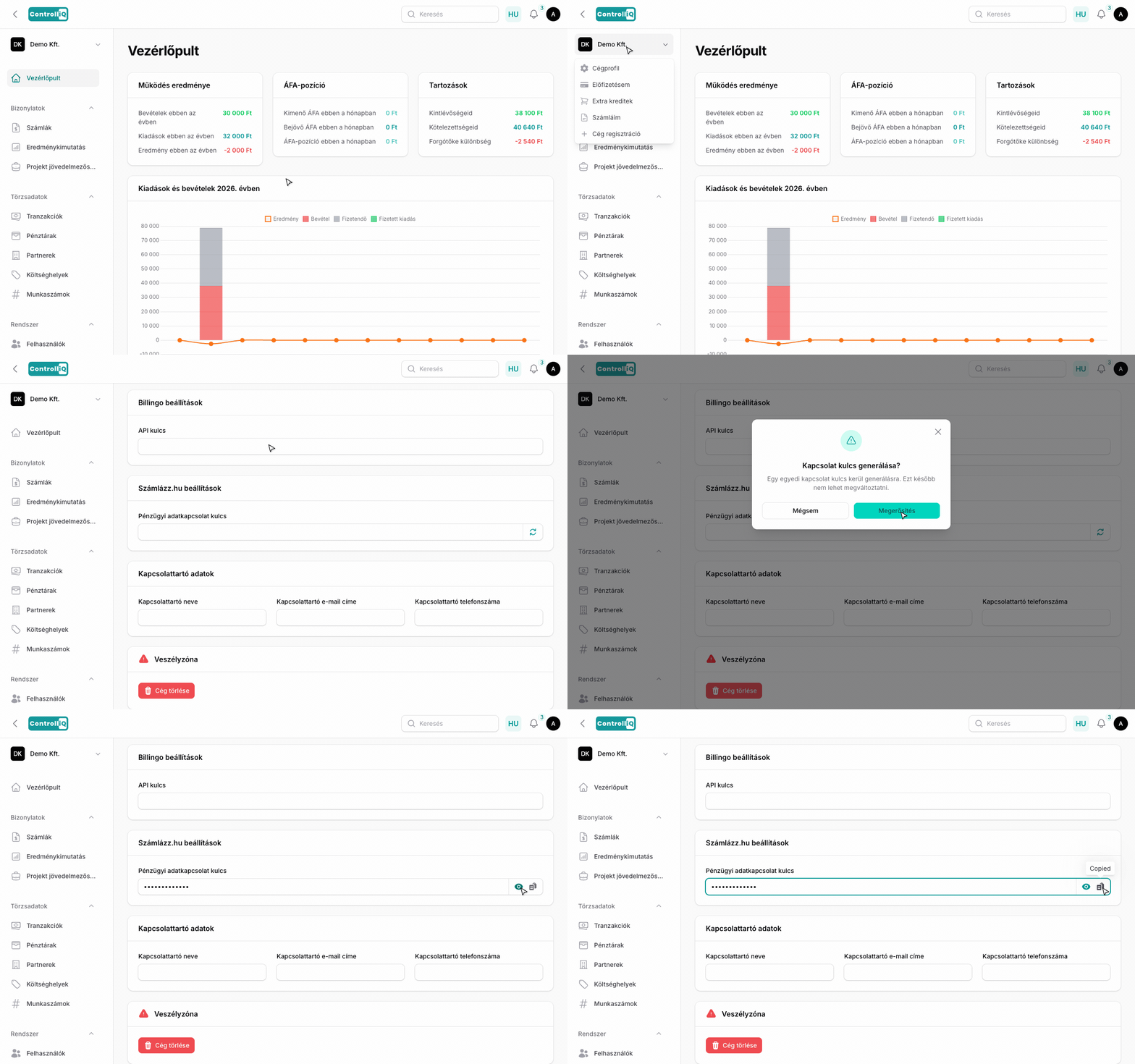
A Számlázz.hu beállítás az Integrációk oldalon található. Az Integrációk oldalt úgy éred el, hogy a bal oldali menüben a cégnévre kattintasz, majd a legördülő menüben az Integrációk elemet választod. Az oldalon görgess le a Számlázz.hu beállítások szekcióig.
1. lépés — Azonosító kulcs generálása a ControlliQ-ban
1
Kattints a cégnévre a bal oldali menüben, majd válaszd az Integrációk menüpontot.
2
Görgess le a Számlázz.hu beállítások szekcióig.
3
Kattints a Kulcs generálása gombra (körbenyíl ikon).
4
Erősítsd meg a generálást a megjelenő ablakban.
5
Másold ki a generált kulcsot a Kulcs másolása gombbal (vágólap ikon).
2. lépés — Kapcsolat beállítása a Számlázz.hu-ban
1
Lépj be a Számlázz.hu fiókodba.
2
Navigálj a Beállítások > Fiók beállításai > Online pénzügyi adatkapcsolat menüpontra.
3
Az Új kapcsolat beállítása szekcióban a fogadó rendszernél válaszd a ControlliQ-ot.
4
Illeszd be a kimásolt azonosító kulcsot.
5
A Számlák küldésénél pipáld be a Küldd el a számlákat is opciót, és állítsd be a kívánt kezdő dátumot.
6
A Banki tranzakcióknál szintén pipáld be az opciót, és állítsd be a kezdő dátumot.
7
Mentsd el a beállításokat.
Megjegyzés: A ControlliQ jelenleg nem kezeli a nyugtákat — csak a számlákat és a banki tranzakciókat importálja.
Fontos
A kapcsolat kulcs egyszer generálódik, és később nem módosítható. Őrizd meg biztonságban.