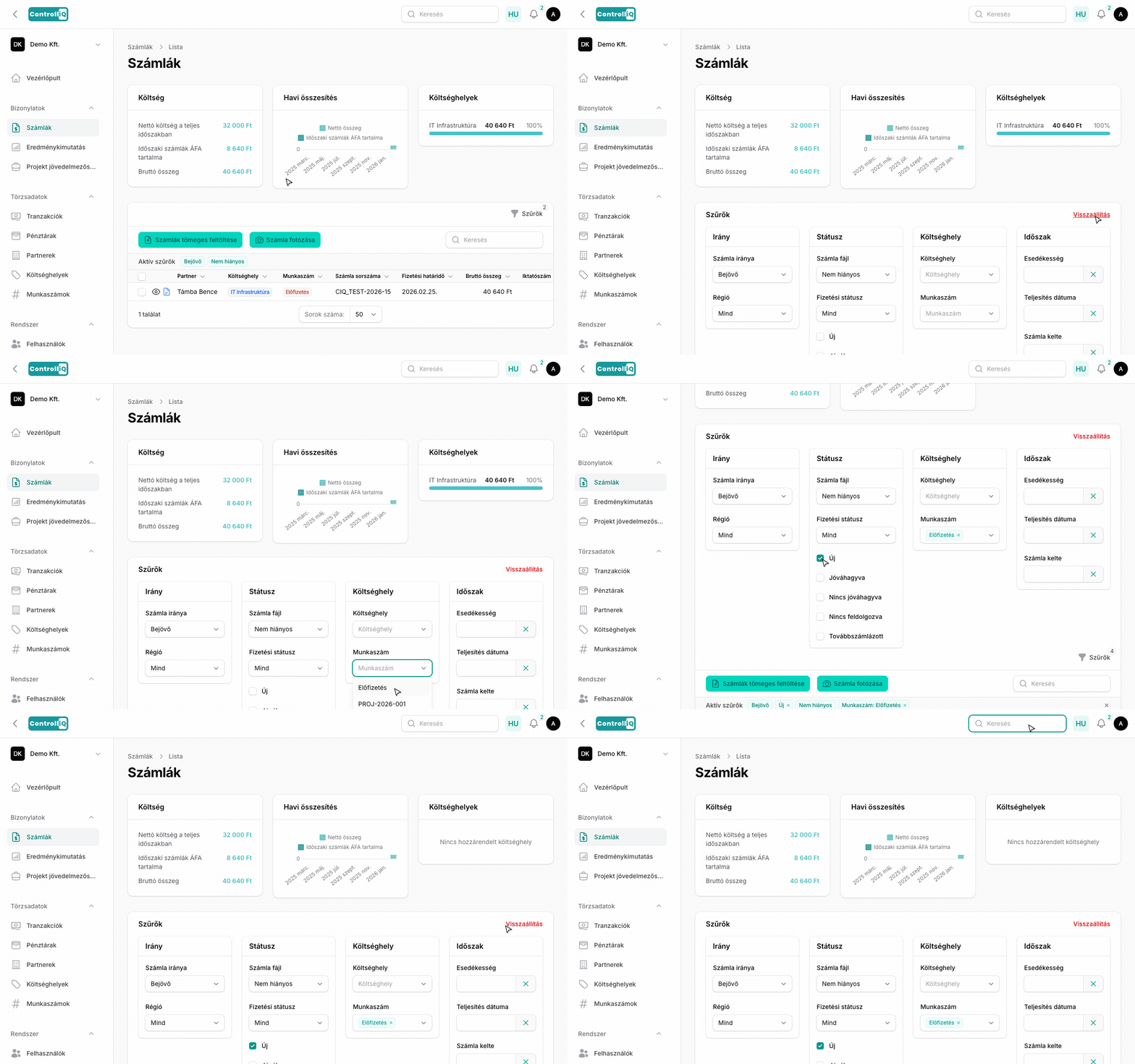
A ControlliQ gazdag szűrő- és keresőrendszert kínál, amely segít gyorsan megtalálni a keresett számlákat nagy mennyiségű bizonylat között is.
Globális kereső
Az alkalmazás tetején, a navigációs sávban található egy globális keresőmező. Ez az összes erőforráson (számlák, partnerek, stb.) egyszerre keres, így bármilyen oldalról gyorsan megtalálhatod a keresett elemet.
Táblázat kereső
A számlatáblázat felett, a feltöltés gombok mellett található egy kereső mező. Ez egyszerre keres a partner nevében, számlaszámban, költséghelyben, munkaszámban, összegben és számla eredetében. A keresés valós időben szűri az eredményeket.
Szűrőpanel
A táblázat felett egy összecsukható szűrőpanel található 4 szekcióban:
Irány
•Számla irány — Bejövő vagy kimenő számlák megjelenítése. Alapértelmezés: bejövő.
•Számla régió — Belföldi, EU vagy harmadik ország beli régió.
Státusz
•Számla fájl — Legördülő menü: Hiányos (PDF nélküli számlák) vagy Nem hiányos bizonylat. Figyelmeztető jelet mutat, ha vannak hiányzó bizonylatok.
•Fizetési státusz — Nincs fizetve, Részben fizetve, Teljesen fizetve, Túlfizetve. A Teljesen fizetve azokat a számlákat is tartalmazza, amelyek maradványa a tolerancián belül van (max. 5 Ft vagy a bruttó 0,5%-a; eltérő pénznemű kifizetésnél az árfolyam-eltérés miatt a bruttó 5%-a).
•Új — Csak az újonnan beérkezett, még meg nem tekintett számlák.
•Jóváhagyva — Csak a jóváhagyott számlák megjelenítése.
•Nincs jóváhagyva — Csak a jóváhagyásra váró számlák.
•Könyvelésre vár — Még nem könyvelt számlák kiszűrése.
•Továbbszámlázott — Csak a továbbszámlázott tételeket tartalmazó számlák.
Költséghely
•Költséghely — Szűrés egy vagy több költséghelyre (többes kiválasztás).
•Munkaszám — Szűrés egy vagy több munkaszámra (többes kiválasztás).